← Back to lessons

Make Claude Yours

Teach Claude how you work. CLAUDE.md files, memory, custom instructions.

01

Project Instructions

Every time you open Claude Code in a folder, it starts fresh. It does not remember conversations from yesterday. It does not know your preferences, your project’s conventions, or the decisions you already made.

Unless you tell it.

The CLAUDE.md file

Create a file called CLAUDE.md in your project’s root folder. Claude Code reads this file automatically every time it starts. Think of it as a briefing document. Whatever you write here, Claude Code follows.

Open Claude Code in your my-site project and try:

Create a CLAUDE.md file with the following instructions:
- This is a personal website built with plain HTML and CSS
- Use dark backgrounds with blue accent colors
- Keep the design minimal and modern
- All pages should have the same navigation bar
- Use the font Inter for all text

Now close Claude Code (/exit) and reopen it:

claude

Ask it to make a change:

Add a blog page

Watch what happens. Claude Code reads CLAUDE.md first, then builds the blog page using your dark theme, your font, your navigation pattern. You did not have to repeat yourself.

What to put in CLAUDE.md

Anything that should be true every time you work on this project:

  • Design rules: colors, fonts, layout conventions
  • Technical choices: “use plain HTML, no frameworks” or “this is a React project”
  • Code style: “use single quotes” or “write comments in Spanish”
  • Project context: “this is a portfolio site for a photographer” or “this tool manages my bookmarks”

Keep it short. A few bullet points is enough. Claude Code reads the whole file every session, so concise instructions are better than long essays.

02

Memory

CLAUDE.md is for project-specific instructions. Memory is for things Claude Code should know about you across all projects.

How memory works

When you tell Claude Code something about yourself or your preferences, it can save that to a persistent memory file. Next time you start a session, in any project, it remembers.

Try it:

Remember that I prefer dark themes and minimal designs for all my projects

Claude Code will save this preference. Now go to a completely different folder, open Claude Code, and ask it to build something. It will default to dark themes and minimal designs without you mentioning it.

What to put in memory

  • Your name and role (“I’m a teacher building tools for my classroom”)
  • Your aesthetic preferences (“I like clean, minimalist design”)
  • Technical preferences (“I prefer Python over JavaScript”)
  • Things that went wrong before (“Don’t use framework X, it broke last time”)

Memory vs CLAUDE.md

The distinction is simple:

  • CLAUDE.md lives in a project folder. It applies only to that project. It gets checked into version control so collaborators benefit too.
  • Memory lives on your computer. It applies everywhere. It is personal to you.

Use CLAUDE.md for project rules: “this site uses Tailwind CSS.” Use memory for personal preferences: “I prefer dark themes.” Both are read automatically. Neither requires you to repeat yourself.

03

Permissions and Trust

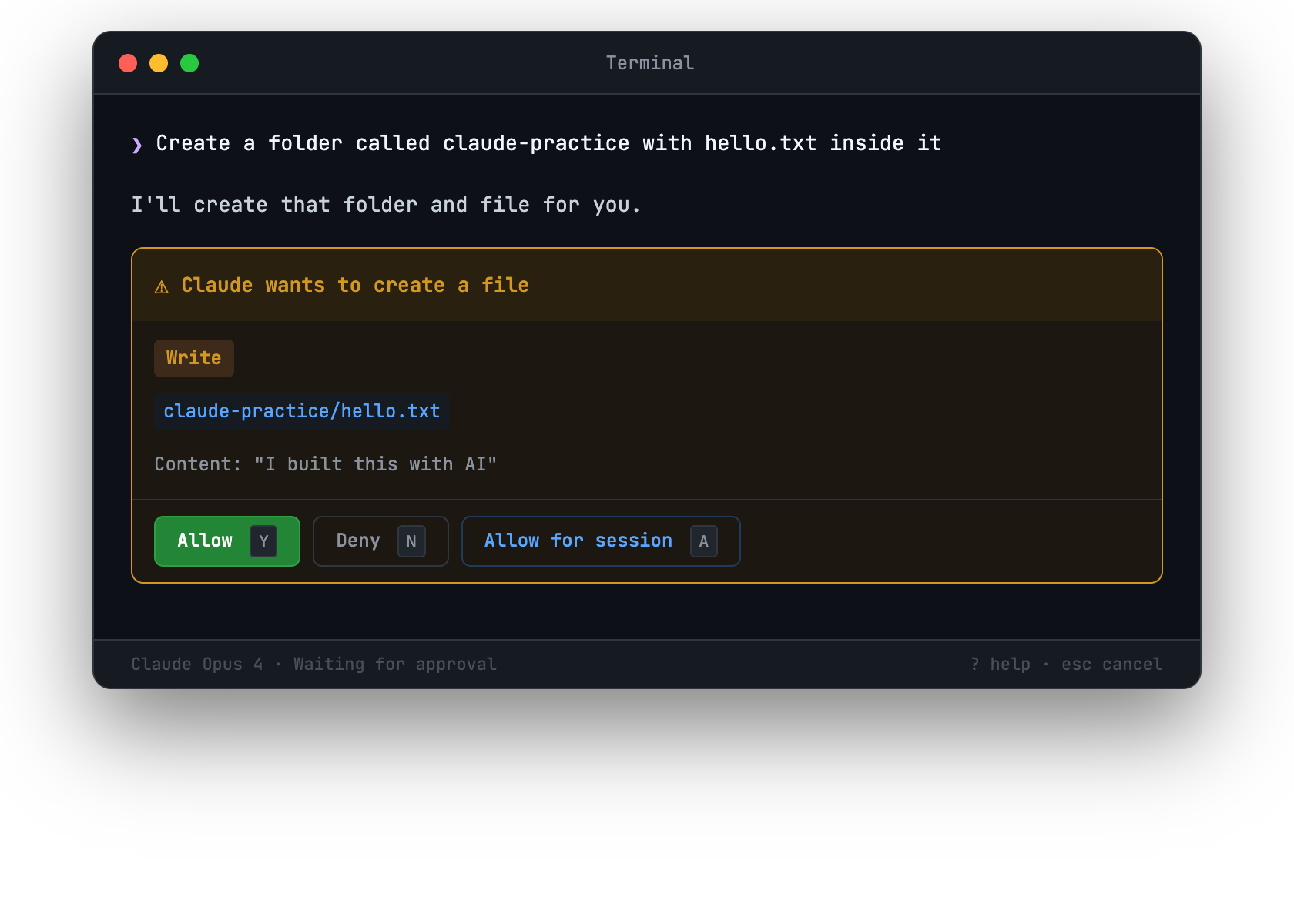
By now you have approved dozens of actions. Every file create, every edit, every command. That is the default permission model: Claude Code asks, you approve.

As you build trust, you can change this.

Allowing specific actions

When Claude Code asks permission for something you always approve, you can tell it:

Always allow reading and writing files in this project

Or you can use the permission prompt itself. When you see Allow? [y/n], you can also type a to always allow that type of action for this session.

Permission modes

Claude Code has different permission modes you can set:

  • Default: asks for every action (what you have been using)
  • Accept edits: auto-approves file reads and writes, still asks for terminal commands
  • YOLO mode: approves everything (only use this when you fully trust what you are building)

For learning, stick with the default. Seeing every action helps you understand what Claude Code does. As you get more experienced, you will naturally want less friction.

The safety model

Claude Code never does anything silently. Even in permissive modes, it shows you what it is doing. You can always:

  • Press Escape to interrupt an action
  • Type /exit to end the session
  • Delete files Claude Code created (they are regular files on your computer)
  • Undo git commits Claude Code made

You are always in control. The permission system exists to make that control explicit, not to slow you down.

04

Your Workflow

You now have all the pieces. Let’s put them together into a workflow that works for you.

The daily pattern

Most people who use Claude Code regularly settle into something like this:

  1. Open Claude Code in your project folder. It reads CLAUDE.md and your memory automatically.
  2. Describe what you want to build or change. Be specific about outcomes, not implementation.
  3. Approve actions and watch the result. Refresh your browser, run the tool, check the output.
  4. Iterate until it is right. “Make this bigger,” “Fix the spacing,” “Add error handling.”
  5. Close the session. Your files are saved. Your project is updated. Pick up tomorrow.

Tips from experience

Start small. “Add a footer” is better than “redesign the entire page.” Small, focused requests get better results than vague, sweeping ones.

Be honest about what is wrong. “The spacing looks off between the header and the content” is more useful than “make it look better.” Claude Code can fix specific problems. It struggles with vague dissatisfaction.

Use Claude Code for exploration. Not sure if an idea will work? Ask Claude Code to prototype it. If you do not like the result, tell it to undo the changes. The cost of trying something is nearly zero.

Save your instructions. When you find a prompt that works well, put it in CLAUDE.md. “When creating new pages, always include the navigation bar and footer” saves you from repeating it every time.

What’s next

You have built a website. You have built a tool. You have customized Claude Code to work the way you like. One thing remains: putting your project on the internet so anyone can see it. That is the final lesson.